
Make a Copy in Google Sheets (Free)
Download for Excel · Preview the template first
One click opens Google’s “Copy document” screen. The copy saves to your own Google Drive; only you can see it, and there’s no email or sign-up.
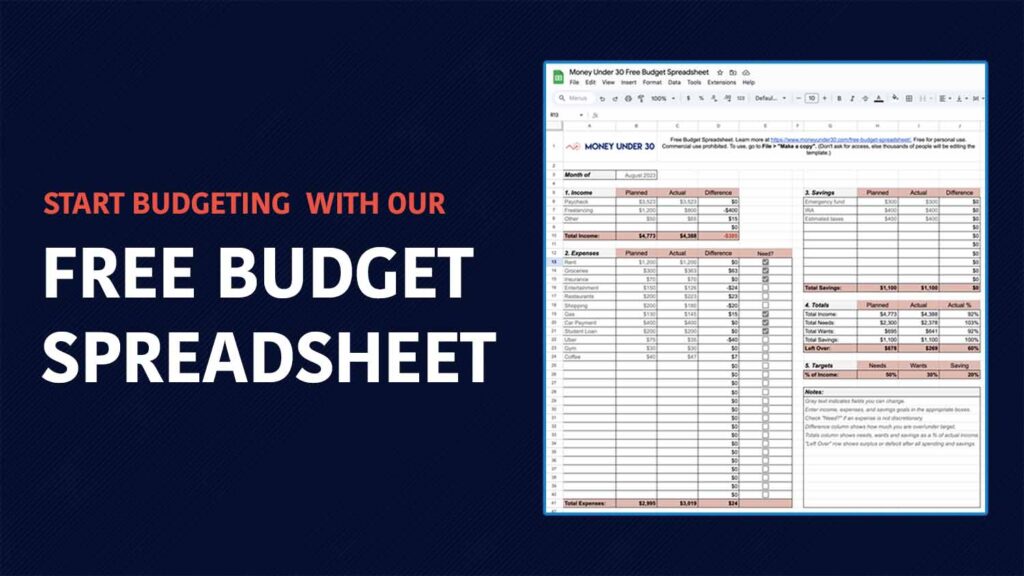
Our Google Sheets budget template is a free, one-page monthly budget that sorts every dollar into needs, wants, and savings, then shows how close you are to the 50/30/20 split. Copy it with the button above, and it’s in your Drive, ready for your numbers. Below: what each tab does, how to set it up in about 15 minutes, and how the 50/30/20 math works with real numbers.
What’s Inside the Google Sheets Budget Template
The template has two tabs with the same layout.
| Tab | What it’s for |
|---|---|
| Example | A filled-in month: $4,773 planned income, 12 expense lines, and 3 savings lines, so you can see how the formulas react before you enter anything. |
| Budget | The same layout, blank, for your own numbers. |
Each tab has five sections: Income, Expenses, Savings, Totals, and Targets. Gray text marks the cells you can change. Everything else is a formula, so the Difference column (actual minus planned) and the Left Over row (money not yet assigned) update as you type.
How to Set Up Your Budget in 4 Steps
- Make your copy. Use the button at the top of this page. If you opened the view-only version instead, go to File > Make a copy. Don’t click “Request access”: it sends a request to our team and won’t give you an editable sheet.
- Enter planned income and expenses. Use take-home pay, the amount that actually lands in your bank account. Check the “Need?” box for expenses you can’t skip (rent, groceries, insurance, minimum loan payments) and leave it unchecked for the rest (restaurants, streaming, shopping).
- Log actual spending. Add each bill or purchase to the Actual column within a day, or do a weekly 10-minute catch-up from your banking app. A positive Difference means you spent more than planned. In the Example tab, groceries were planned at $300 and came in at $363, so the Difference shows $63.
- Read your Totals. The Totals section shows needs, wants, and savings as a percentage of your actual income, next to your targets. Anything in Left Over hasn’t been assigned yet; move it to savings or an extra debt payment before the month ends.
How the 50/30/20 Rule Works in the Template
The 50/30/20 rule splits take-home pay three ways: 50 percent for needs, 30 percent for wants, and 20 percent for savings and extra debt payments. Elizabeth Warren and Amelia Warren Tyagi popularized it in their book All Your Worth, and it’s the default in the template’s Targets row.
On $4,000 a month of take-home pay, the split looks like this:
| Bucket | Share | Monthly amount |
|---|---|---|
| Needs | 50% | $2,000 |
| Wants | 30% | $1,200 |
| Savings and extra debt payments | 20% | $800 |
The Example tab shows what a real month looks like against those targets. On $4,388 of actual income, needs came to $2,378 (54 percent, over target because of rent and a car payment), wants to $641 (15 percent), and savings to $1,100 (25 percent). That’s a typical result: over on one bucket, under on another, and still a solid month.
If your needs run past 50 percent, you’re not doing it wrong. In the Bureau of Labor Statistics’ 2024 Consumer Expenditure Survey, housing alone took 33.4 percent of the average household’s spending and transportation took another 17.0 percent. Change the Targets row to 60/20/20 or 70/20/10, and the template recalculates. Protect the savings number last, since the first job for that 20 percent is usually a starter emergency fund.
Give Every Dollar a Job With Zero-Based Budgeting
Zero-based budgeting means planning until the Left Over row reads $0. That doesn’t mean spending everything. It means every dollar gets assigned somewhere, including savings, so none of it drifts into “I’m not sure where that went.” In the Example tab, planned Left Over is $678; assigning it to the emergency fund or a debt payment turns it into a zero-based budget.
Tips That Keep a Budget Going Past Month One
- Start a new tab each month. Right-click the Budget tab, choose Duplicate, and rename it (for example, “October 2026”). You keep a month-by-month history in one file.
- Set up on payday or the 1st. Adjust planned amounts for anything that changed: a raise, a new subscription, an annual bill coming due.
- Change the plan after two months, not two days. If a category misses by about the same amount two months in a row, the plan is wrong, not you. Update the planned number.
- Expect some misses. One over-budget category doesn’t break the month. The goal is knowing where the money went and adjusting next month.
Prefer a Budgeting App?
A spreadsheet takes a few minutes of manual entry each week. If you’d rather connect your bank accounts and let the app sort transactions, these are worth a look:
- Empower: Tracks spending, net worth, and investments in one dashboard, with retirement planning tools. Full Empower review
- PocketSmith: Analyzes spending habits and forecasts your balances up to six months out. Full PocketSmith review
- YNAB (You Need A Budget): A zero-based budgeting app built around assigning every dollar, with detailed reports. Useful if you’re paying down debt. Full YNAB review
Frequently Asked Questions About the Google Sheets Budget Template
Is the Google Sheets budget template really free?
Yes. It’s free for personal use, with no email or sign-up. Commercial use (reselling or redistributing it) isn’t allowed.
Why can’t I edit the template?
The shared version is view-only so thousands of visitors don’t overwrite each other’s numbers. Use the “Make a Copy” button to get your own editable version.
Does the budget template work in Excel?
Yes. Use the “Download for Excel” link. The formulas carry over; test the “Need?” checkboxes after downloading, since Excel may show them as TRUE or FALSE values.
Can I track more than one month?
Yes. Duplicate the Budget tab at the start of each month and rename it, so each month keeps its own record in the same file.
Should I budget with gross pay or take-home pay?
Use take-home pay. If 401(k) contributions come out of your paycheck before you see it, add that amount to both Income and Savings so it counts toward your 20 percent.
Final Thoughts
Budgeting is tedious at first, mostly because the first month shows where your money went without your say. That’s the useful part. The number that matters most is Left Over: when it hits $0 on your planned column, every dollar has a job. Copy the template now, enter last month’s take-home pay and your fixed bills, and fill in the rest as the month goes.
More For You
- 13 questions to ask when interviewing a financial advisor
- What car should i buy? How to choose the best car for your budget
- How to get your free credit reports and scores
- How to use a credit card responsibly
- Does your debit card have a daily spending limit?
- Banking 101: How do banks make money?
- Why your credit card isn’t really paid off: How residual interest works
- The 5 biggest mistakes people make when buying a car
